
Share a Claude Project without a Teams plan

You built a Claude Project. It has your brand voice, your customer FAQ, the way you write things, maybe a few reference docs. It works. Now you want a teammate to use the same one, so their answers come out sounding like yours instead of generic.
You go looking for the share button and it isn’t there. When you dig into the help docs, the answer is that shared Projects come with the Team plan.
That turns out to cost more than it first looks. Here’s what’s going on, and a way to get shared team context without putting everyone on a paid team plan.
What a Claude Project is
A Project in Claude is a container for one line of work. You give it instructions and reference files (a style guide, a product sheet, past examples), and every chat you start inside that Project inherits them. So instead of pasting your brand voice into a fresh chat every morning, you open the Project and Claude already has it.
That is genuinely useful, but it only works for whoever owns the Project.
Why you can’t share a Claude Project on Pro or Max (as of 2026)
On the individual plans (Pro and Max), Projects are built for one person. You can make as many as you want to organize your own chats and documents. What you can’t do on those plans is hand a Project to a coworker so you both work from the same one.
As of 2026, Anthropic puts Project sharing and collaboration on its Team and Enterprise plans. That’s their design, and it’s a reasonable one. Team is a paid per-seat plan with a seat minimum (two seats as of late July 2026, though that number has moved before), and every person who needs the shared Project needs their own seat. (Plan details and minimums change, so check Anthropic’s current pricing page before you count the cost.)
So the real cost of sharing this one Project is putting the whole team on a per-seat team plan. For a small shop where a few people already pay for their own Pro subscription, that math gets uncomfortable, because you’re paying a second time, per person, for the one feature you wanted.
None of this is a knock on Anthropic. Team plans exist for a reason, and if your whole company lives in Claude all day, one is probably worth it. But if you just want a few people to pull from the same context, buying seats for everyone is a lot to spend on a small need.
A couple of other things worth knowing. This is where things stand in 2026, and plan features change. And even a shared Project only helps the people inside that one Claude account, so if half your team uses ChatGPT, a Claude Project does nothing for them.
The workaround: put your context somewhere both tools can read
The thing to notice is that you don’t actually want to share a Project. You want your team’s AI to answer from the same context you do. The Project was just the container you happened to use.
So put the context somewhere your AI can reach on its own, and point each person’s AI at it.
The way AI tools reach outside their own chat is a connector (the open standard is called MCP, the Model Context Protocol). A connector lets Claude or ChatGPT read from a source you control: a workspace that holds your brand voice, your FAQ, your how-we-do-X docs, the same material you would have loaded into a Project.
The shape looks like this:
- You keep one shared workspace. It has your context in it: voice, process, reference docs, whatever you would have put in the Project.
- Each teammate connects their own AI to that workspace with the connector.
- When anyone asks their AI to draft, answer, or summarize, it reads the shared context first and works from it.
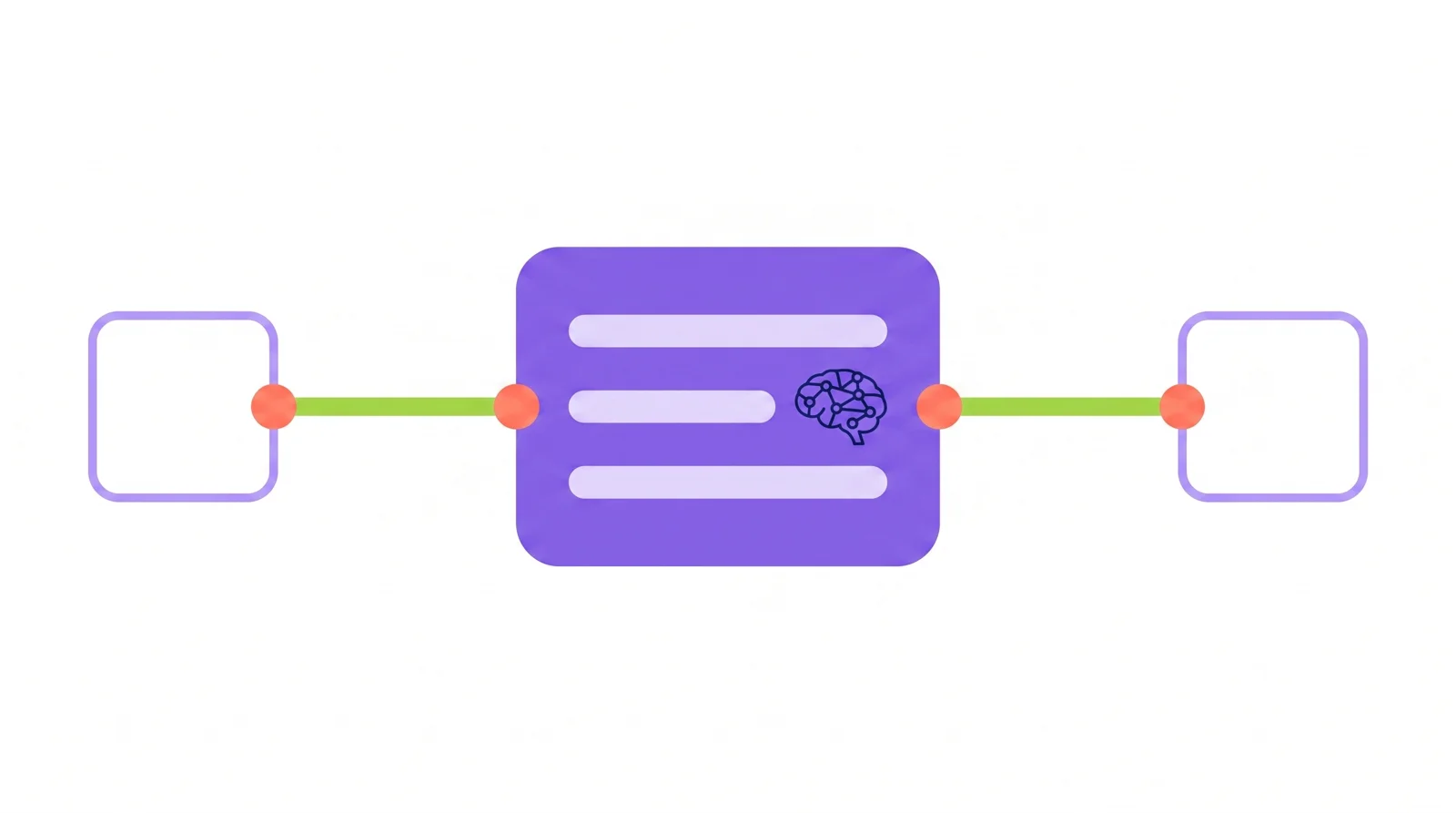
Nobody’s Project got shared, but everybody’s AI is now working from the same context, which is what you actually wanted.
Why this beats a shared Project
A shared Project keeps everyone inside one Claude team account. The connector approach works no matter which AI each person uses. Your Claude user and your ChatGPT user pull from the same workspace, because the context lives in the workspace, not in either tool.
It’s also one place to update. Change the brand voice once, in the workspace, and the next answer from anyone’s AI reflects it. With copies of a Project, or instructions pasted around, you would be chasing stale versions.
And the context isn’t tied to anyone’s account. People can come and go, switch tools, and use free plans, and the shared workspace stays where it is.
How to set it up, step by step
You don’t need to code. The steps are ordinary.
1. Gather the context you would have put in the Project
Open the Project you built, or just think through what you would want a new hire’s AI to know. Pull out the pieces:
- How you sound. The brand voice, the words you use and the ones you don’t.
- What you do. The FAQ, the product facts, the policies.
- How you do it. The steps for the tasks that come up over and over.
You already wrote most of this to make the Project work. You’re moving it, not writing it fresh.
2. Put it in one shared workspace
Set up a workspace the team shares and drop the context in. This is the part that replaces the Project. The difference is that it isn’t locked to one person’s account, and it’s built to be read by an AI through a connector.
TeamBrain is one place to do this. It’s a shared workspace your whole team’s AI reads from, and it exposes a connector so Claude and ChatGPT can both reach it. You layer your context the way a real team does: global for how the whole company sounds, then per-project on top of that.
3. Connect each person’s AI
Each teammate adds the connector to their own AI once. In Claude, that’s under Settings, Connectors, Add custom connector: paste the workspace link and authorize. Claude’s flow is open on every plan, including free. ChatGPT can do the same, but as of 2026 it takes a paid plan and you have to turn on developer mode first, and it’s still a beta feature there. Either way, once it’s added their AI reads the shared context.
4. Test it with a real task
Have someone who did not build the context ask their AI to do something that needs it. “Draft a reply to this customer email in our voice.” If the draft comes out sounding like you, without them pasting anything in, the shared brain is working.
That’s the test that matters. The setup is done when a second person’s AI produces your context without being handed it.
When a Team plan is still the right call
Be honest with yourself here. If your team genuinely runs on Claude all day, every person deep in their own chats and Projects, the Team plan buys you things a shared workspace doesn’t. It’s Claude’s own collaboration, billed and managed in one place, and it’s the supported path. If you use the tool that heavily, paying for it makes sense.
The workaround is for the common case the plan gates don’t fit: a small team, a mix of AI tools, most people on free or Pro, and one thing you actually need shared. That’s most small teams right now.
The short version
Claude Projects are built for one person on Pro and Max. Sharing them means the Team plan, which means a seat for everyone, as of 2026. If that fits, buy it.
If it doesn’t fit, put the context in one shared workspace and connect each person’s AI to it. You get the shared context without the shared plan. Your Claude user and your ChatGPT user both work from the same place, you update it once, and it stays put when people move around.
Start with the context you already wrote, move it into the workspace once, and then have someone else’s AI confirm it works.
Put your whole team on one shared brain.
Get the free guide to the new way of working with AI, then bring your team along.